
Download Final Screen Capture – free screen recorder and screenshot tool
Final Screen Capture is a lightweight yet powerful screen‑record and screen‑capture utility designed for users who need a fast, reliable way to document what happens on their desktop. Whether you are creating a tutorial, capturing a bug for tech support, or simply saving a memorable moment from a game, Final Screen Capture gives you the flexibility to take high‑resolution screenshots, record smooth video, and even highlight mouse movements and clicks in real time. The interface is intentionally minimalistic, allowing even beginners to start capturing within seconds, while advanced options such as frame‑by‑frame editing, custom cursor cues, and adjustable bitrate keep power users satisfied. Because the software is free, it has become a popular alternative to pricier commercial tools, and its regular updates ensure compatibility with the latest Windows, macOS, and Linux releases. In this review we’ll explore its core capabilities, walk through the installation process, examine system requirements, and weigh the pros and cons to help you decide if Final Screen Capture is the right addition to your productivity toolkit.
Core Features & Benefits
- Instant full‑screen or region‑specific screenshot capture.
- High‑definition video recording up to 1080p with adjustable frame rates.
- Mouse‑cursor tracking with visual click indicators.
- Customizable hotkeys for start/stop, screenshot, and pause.
- Built‑in basic video editor for trimming and adding annotations.
- Support for multiple audio sources (system sound, microphone, or both).
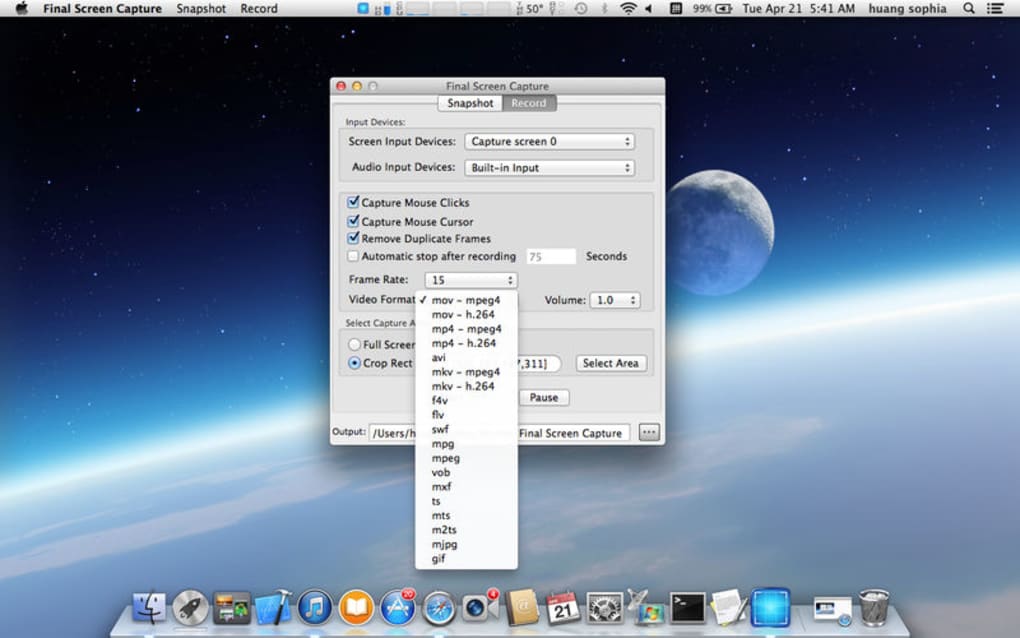
- Export options for PNG, JPEG, MP4, AVI, and GIF formats.
- Automatic file naming and organized output folders.
- Lightweight installer under 15 MB, minimal RAM footprint.
- Frequent free updates that add new codecs and bug fixes.
What truly sets Final Screen Capture apart is the seamless integration of mouse‑click visualization. When you enable the “click cue” option, each click is highlighted with a brief circle or ripple, making it crystal clear for viewers where you interact on the screen. This feature alone is a game‑changer for instructional videos and software demos, eliminating the need for post‑production overlays.
The software also supports simultaneous audio capture, allowing you to narrate while recording, which is essential for tutorial creators. Another benefit is the ability to define custom hotkeys, meaning you can start a recording or snap a screenshot without leaving the application you’re working on. The built‑in editor, while simple, provides enough functionality to cut unwanted sections, add text captions, and adjust playback speed without exporting to a third‑party editor.
Overall, the feature set balances simplicity with enough depth to satisfy both casual users and professionals who need a reliable, free tool.
Installation, Usage & Compatibility
Getting Final Screen Capture up and running is straightforward. Download the installer from the official website, then run the .exe (Windows) or .dmg (macOS) file. The wizard guides you through a typical installation process: accept the license agreement, choose the destination folder, and optionally create a desktop shortcut.
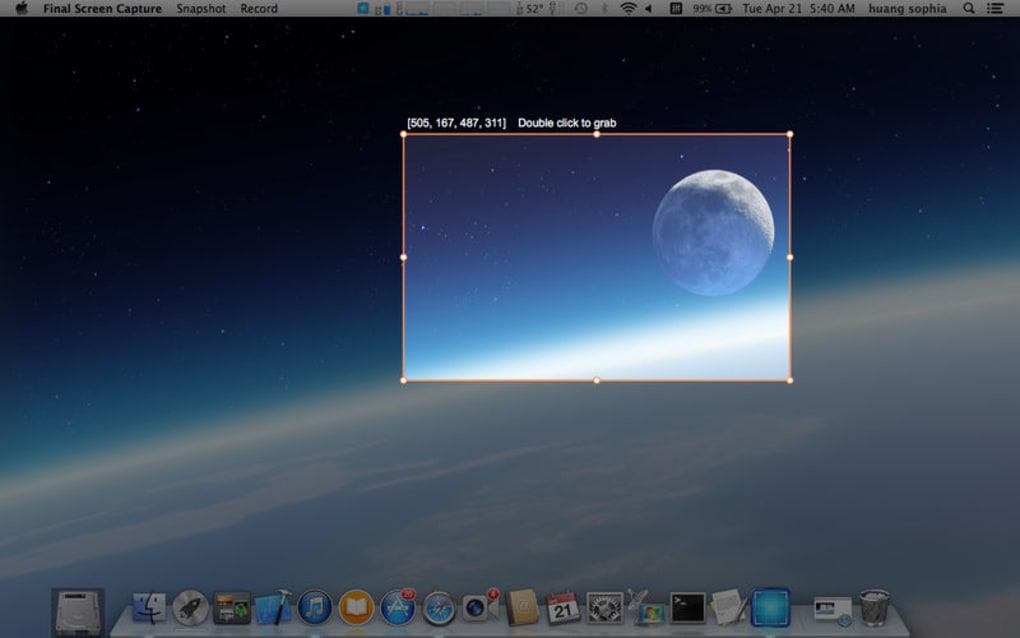
After installation, launch the application; the main window displays a clean toolbar with icons for screenshot, record, settings, and help. To start a capture, simply press the “Record” button or use the default hotkey (Ctrl + Shift + R). A quick overlay appears, letting you select the capture area—full screen, a specific window, or a custom rectangle.
For screenshots, click the camera icon or press Ctrl + Shift + S. All captures are saved automatically to the “FinalScreenCaptures” folder in your Documents directory, but you can change this location in the Settings panel.
Compatibility is broad: Final Screen Capture runs on Windows 7, 8, 10, and 11 (both 32‑bit and 64‑bit), macOS 10.13 and later, and popular Linux distributions such as Ubuntu, Fedora, and Debian. The developers also provide a limited Android version for mobile screen capture, though the full desktop feature set remains Windows/macOS/Linux exclusive. System requirements are modest—a dual‑core processor, 2 GB RAM, and 200 MB of free disk space are sufficient for basic use. For high‑resolution video recording (1080p at 60 fps), a more powerful CPU and GPU are recommended to avoid dropped frames. The software is signed with a trusted certificate, ensuring a secure download and installation experience free from adware or hidden telemetry.
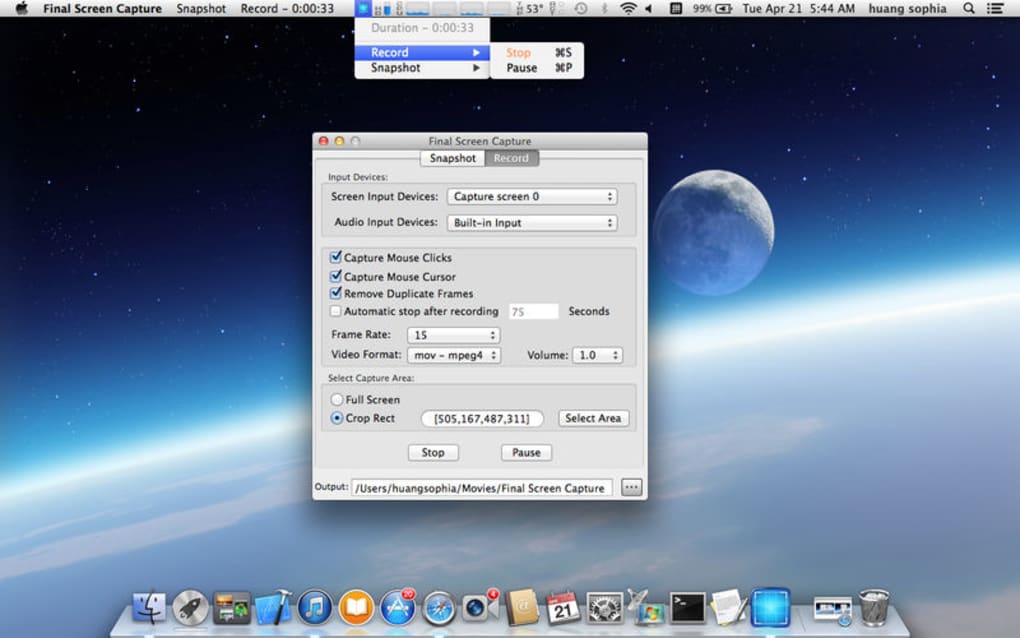
Using the tool is intuitive. After selecting a region, you can enable “Show mouse clicks” and choose the visual style (circle, ripple, or numeric counter). The recording panel includes a tiny timer, audio level meter, and pause button.
When you finish, click “Stop” or press the hotkey again. The video is processed instantly and appears in the preview window, where you can trim the start or end points, add a caption, or adjust the volume. The final file can be exported directly to MP4 (H.264) for maximum compatibility, or to AVI if you need an older codec.
Export settings—bitrate, frame rate, and audio sample rate—are adjustable in the Preferences menu, giving you control over file size versus quality. Overall, the installation and day‑to‑day workflow are designed to let you capture what you need without wrestling with complex menus.
Pros, Cons & Frequently Asked Questions
Pros
- Free with no hidden fees or watermarks.
- Fast startup and low system impact.
- Mouse‑click visual cues are built‑in and highly customizable.
- Supports multiple audio sources and hotkey shortcuts.
- Regular updates keep it compatible with new OS releases.
Cons
- Advanced video editing features are limited compared to paid suites.
- No native support for cloud storage integration.
- Linux version may lack some UI polish found on Windows/macOS.
- Export options are limited to common formats; no direct GIF creation.
- Customer support is community‑based rather than dedicated.
FAQ
Can I capture my screen without showing the mouse cursor?
Yes. In the Settings panel, disable the “Show mouse cursor” option before you start a recording. The cursor will be hidden from the final video while still being usable during capture.
Does Final Screen Capture support 4K video recording?
The free version caps video resolution at 1080p. For 4K capture you would need to upgrade to the premium edition, which is currently in beta.
Is there a way to schedule recordings?
Scheduling is not built into the free version. However, you can use Windows Task Scheduler or macOS Automator to launch the application with command‑line arguments at a specific time.
Can I record from multiple monitors simultaneously?
Yes. When you choose “Full Screen,” the software captures the combined desktop area across all connected monitors. You can also select a region that spans multiple screens.
Is Final Screen Capture safe to download and install?
Absolutely. The installer is digitally signed, distributed from the official website, and free of adware or unwanted extras. Always verify the download URL ends with the official domain.
Conclusion & Call to Action
Final Screen Capture delivers a surprisingly robust set of screen‑recording and screenshot tools for a completely free price tag. Its standout mouse‑click visualizer, lightweight footprint, and cross‑platform support make it an excellent choice for educators, developers, gamers, and anyone who needs to capture their desktop quickly and securely. While it lacks the deep editing suite of premium competitors, the built‑in trimming and annotation features are more than adequate for most everyday tasks. If you’re looking for a hassle‑free, trustworthy solution that respects your privacy and updates regularly, downloading Final Screen Capture today will likely meet—and in many cases exceed—your expectations.
Ready to start capturing? Download Final Screen Capture now and experience the convenience of a professional‑grade screen recorder without spending a dime.
Final Screen Capture impresses with its intuitive UI, reliable performance, and the unique ability to highlight mouse clicks in real time. The free model covers all essential features for most users, though power users may eventually outgrow its basic editing tools.







